2026 update: uploads stay 4:5 while the profile grid still shows 3:4
In January 2025 Instagram replaced the classic 1:1 square grid with a 4:5 rectangle (1080×1350). As of January 2026 there is still no new announcement; based on tests, the platform continues to require 4:5 uploads even though the profile grid shows only the 3:4 center.
Rather than hoping for another change, it’s better to understand the current rule set and build a safe workflow around it.
Why creators still prefer the predictable 1:1 square grid
A square puzzle is predictable: split a single hero image into 1:1 tiles, upload them in order, and you instantly get a seamless grid. Nothing is cropped because the display area matches the upload size.
Under the 4:5 → 3:4 pipeline things are different. When you upload a 1080×1350 (4:5) image, the profile grid only shows the inner 810×1080 (3:4) portion. Even if you upload 810×1080 directly, Instagram stretches it back to 4:5 and trims it again. That second crop is exactly what removes headlines, model faces, or product edges.
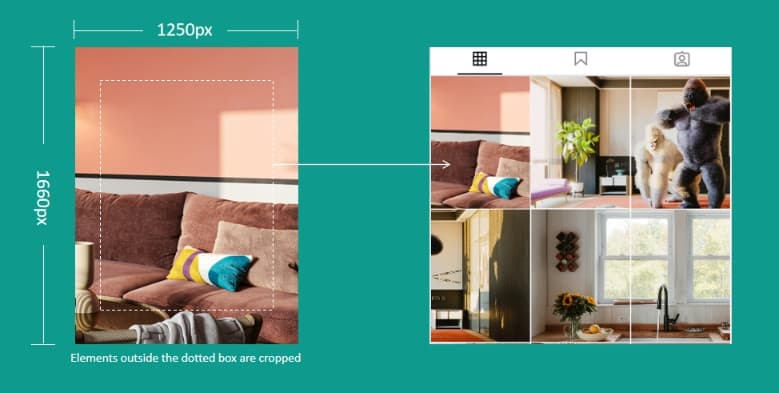
Everything outside the dotted 3:4 box gets cropped on your profile grid.
Single-post strategy: keep every key element inside the 3:4 safe zone
You can continue uploading 4:5 files and keep all important elements inside the 3:4 center box. This prevents a single post from losing text or faces after the automatic crop.
However, this method fails when you create profile puzzles. Every tile’s edge still gets trimmed and the grid misaligns. We need a different approach if we want a perfect IG grid cutter workflow.
Safe padding method: protect your Instagram grid cutter puzzles from cropping
White-space padding (safe padding) is the only thing you can control. Follow this process:
- Prepare the real 3:4 content—the composition you want followers to see.
- Place it inside a 4:5 canvas and leave blank space wherever Instagram usually trims.
- Upload the padded file. Instagram removes only the padding, so the content and puzzle layout stay perfect.
This strategy works in most regions and devices. Cropping patterns can vary, but the white frame absorbs the typical trims.
Instagram grid cutter padding options (All-side vs left & right)
1. All-side padding (default recommendation)
Use this when Instagram trims every edge.
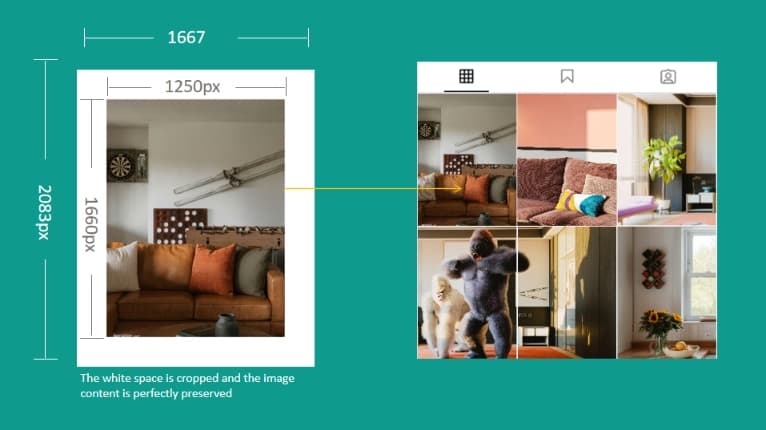
Example using a 1250×1660 (3:4) image:
- Treat the image as 3 units wide and 4 units tall (1 unit ≈ 1250 ÷ 3 ≈ 416.67 px).
- Convert to 4:5: width = 4 × 416.67 ≈ 1666.67 px, height = 5 × 416.67 ≈ 2083.33 px. Round to 1667×2083 px.
- Horizontal padding = 1666.67 − 1250 = 416.67 px (≈208.33 px on each side).
- Vertical padding = 2083.33 − 1660 = 423.33 px (≈211.67 px on each side).
Center the 1250×1660 content inside the 1667×2083 canvas. Based on our testing, Instagram often crops around 1/8 of each edge, so the padding absorbs the trim.
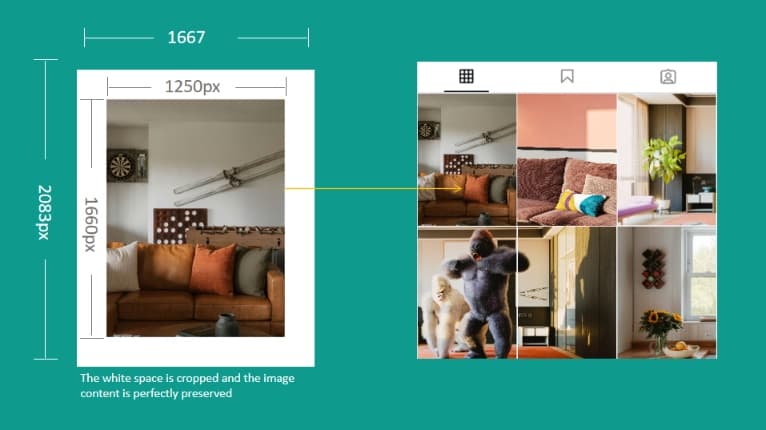
All-side padding keeps the puzzle perfectly aligned.
2. Left & right padding
Use this when your region mainly trims the left and right edges.
Same source image (1250×1660):
- Keep the height at 1660 px and derive the width from the 4:5 ratio: 1660 × 4 ÷ 5 = 1328 px.
- Total horizontal padding = 1328 − 1250 = 78 px, so each side gets 39 px of white space.
- The top and bottom remain unchanged, so vertical content stays identical.
Create a 1328×1660 canvas and center the original image. Instagram’s side crop removes only the 39 px padding.
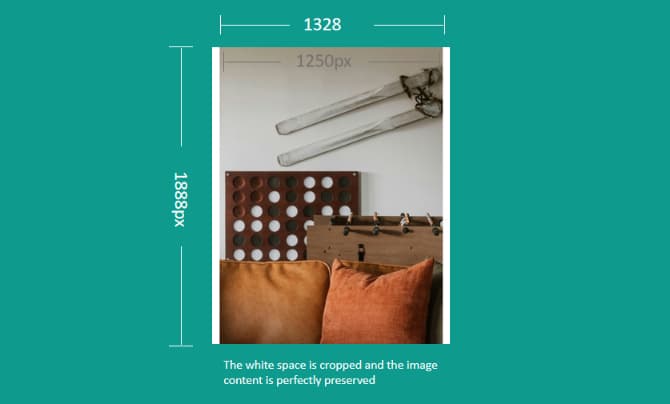
Left & right padding absorbs regional side crops.
Instagram grid cutter tutorials
1) Manual canvas creation
- Split your hero image into multiple 3:4 tiles. Free tools like aiimagesplitter.com support 3:4, 4:5, and 1:1 ratios.
- Create a 4:5 canvas in Photoshop or another editor. Choose All-side or Left & right padding and input the exact pixel values.
- Place each 3:4 tile in the center of the canvas and keep the padding color (usually white) consistent.
- Export JPG/PNG files, name them in upload order, and post them to form the puzzle grid.
Pros: total control and perfect for strict brand guidelines. Cons: repetitive and time-consuming—every tile must be rebuilt by hand.
2) IG Grid Maker one-click workflow
- Choose the image you want to convert and pick a layout (1×3, 2×3, 3×3, 4×3, or custom).
- Open “Advanced settings > IG recrop protection” and select the padding mode. Keep the default All-side padding for most cases; switch to Left & right when needed.
- Drag or resize the split frame so all key elements stay inside the 3:4 preview.
- Click “Create Grid” to generate the tiles, then download them individually or as a ZIP package.
- Upload according to the suggested order to build a seamless, crop-proof grid.
Benefits: consistent padding, instant previews, ZIP download, and no manual calculations.
Use IG Grid Maker nowKeep exploring Instagram grid resources
Need precise upload sizes and ratio math? Instagram grid size 2025 guide
Planning color themes or multi-panel layouts? Profile grid layout walkthrough
Instagram grid cutter FAQ
Do I need to customize the Instagram grid cutter padding?
Usually no. Based on tests, two common patterns appear: all-side crops or left/right crops, and the IG Grid Maker grid cutter already includes both padding modes. If your account behaves differently, share an example via the contact page so we can improve the tool.
Will safe padding reduce image quality?
No. The padding simply adds white space, so the 3:4 content stays untouched. Upload high-resolution sources (long edge ≥ 3000 px) for the sharpest results.
Does the grid cutter workflow affect Reels or Stories?
No. This guide focuses on the profile grid. Reels and Stories use 9:16 vertical ratios, so prepare separate assets for those formats.